Build, browse & enable architectures
An architecture is a named hierarchy that groups your files and entities any way you need — by team, layer, feature, or anything else. This page covers the mechanics: browsing architectures, enabling the built-in ones, building your own, and moving them between projects.
Beyond the built-ins below, Understand ships many architecture plugins you can simply enable — for example CMake (extracts the structure of a CMake-based project), Cycles (groups entities caught in dependency cycles), Copyright and License (groups files by the license in their comments), and the Git architectures. See the architecture catalog for the full list, and enable them from Tools → Plugin Manager — see Install & run plugins.
Open the Architecture Browser
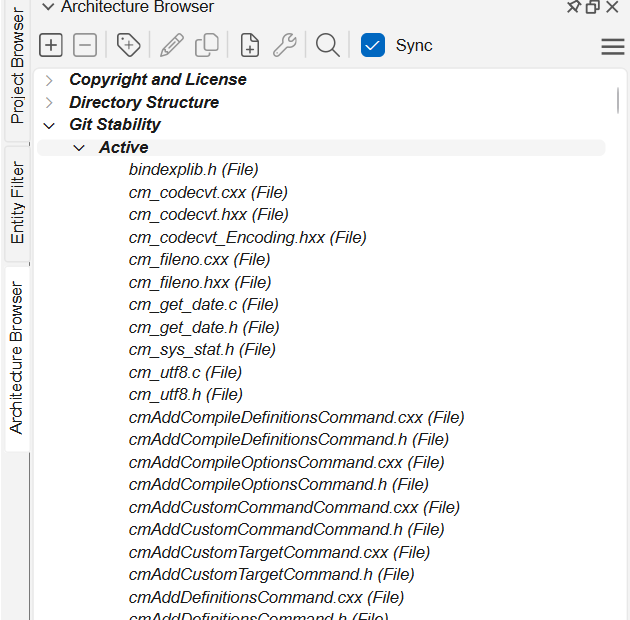
Architectures → Browse Architectures opens the Architecture Browser, docked at the left by
default. It's an expandable tree of the architectures defined for your project — click the > arrows
to drill into nodes down to individual entities. Selecting an item updates the
Information Browser when its Sync box is checked.
The browser's hamburger menu controls the view: Show File Name As / Show Entity Name As (long or short) and Show Implicitly Mapped Child Entities (list entities within each file).
Enable a built-in architecture
By default only Directory Structure is shown. Enable the others from the Architecture Browser's hamburger menu:
| Architecture | Groups files by |
|---|---|
| Directory Structure | Folder hierarchy (always available). |
| Calendar | Last change date — This Year → This Week → Yesterday → Today. |
| Git Author | Git author — by default the most recent author to modify each file. |
| Git Date | Git commit dates — group by first commit (created) or last commit (changed). |
| Language | Source language — one group per language, each mirroring the directory tree. |
| Visual Studio | The Visual Studio project/solution they belong to (VS projects only). |
Note
Automatic architectures are regenerated each time you open the project and after each analysis, so they keep up with the current file set. Calendar groups are relative to the date they were generated, so they can drift if you leave a project open for days.
Build a custom architecture
To build your own — tagging entities as you browse, or laying the whole structure out in the Architecture Designer — see Build a custom architecture.
Import & export (share) architectures
Architectures are saved in the project, so teammates on a shared project already have them. To move one between projects, use XML:
- Export: in the Architecture Browser, select the architecture, then hamburger menu → Export Selected Architecture.
- Import: hamburger menu → Import Architecture.
From the command line with und:
und export -arch "Directory Structure" toHere.xml myProject.und
und import -arch myArch.xml myProject.und