Install Understand
First download Understand and create an account — the latest build is always at licensing.scitools.com/download (supported OS versions are listed under supported languages & platforms) — then pick your platform below. After installing, enter your license. Installing on a network with no internet? See Install & run Understand fully offline.
Understand ships on Windows as a small web installer (.exe) that downloads the
components you select, so it needs internet while it runs (for a disconnected machine, see
Create an offline install kit). A ZIP kit is also
available for portable or no-installer deployments: extract it anywhere, then run
_setup-shortcuts.bat (inside the extracted folder) to create Start Menu and Desktop shortcuts
and add the command-line tools to your PATH — no administrator rights needed. Run
_remove-shortcuts.bat to undo that. It installs to
%ProgramFiles%\SciTools by default — administrator rights are requested when needed — and
adds Start Menu and desktop shortcuts and a per-user PATH entry, each optional.
Interactive install
Run the downloaded Understand-<version>-Windows-64bit.exe. A Default Install includes
everything: the application, command-line tools, documentation, the CMake example project, and a local AI model
(downloaded during installation). Pick Advanced Install instead to
choose components, the AI model, or the shortcut and PATH options.
Then enter your license.
When Setup needs administrator rights, it shows a small Requesting administrator permission window while Windows asks. If you don't see the User Account Control prompt, click its button flashing in the taskbar.
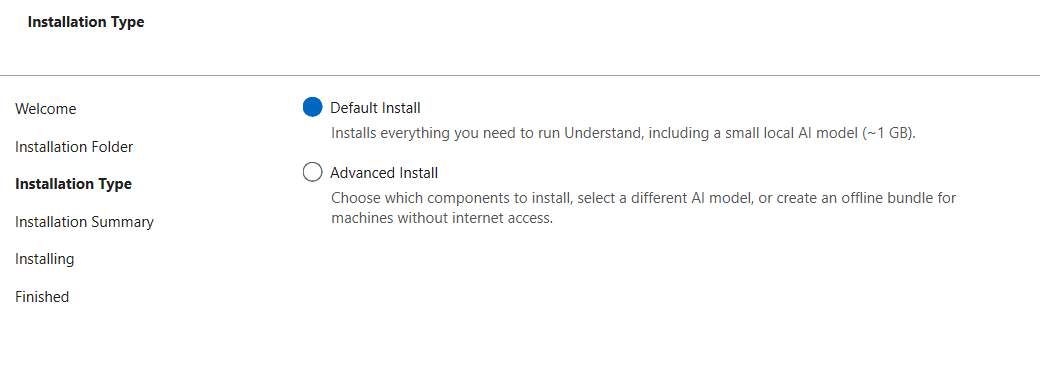
The installer looks up the current release each time it runs, so an installer you downloaded weeks ago still installs today's release — there's no need to fetch a fresh installer first. The Welcome page names the version it is about to install, and Advanced Install can install an earlier release instead.
If the folder already holds an Understand installation, the installer offers to update it in place (only changed components are downloaded). Choosing a fresh installation instead deletes everything in that folder first — it warns before it does.
Silent / unattended install (for network / mass deployment)
The installer has a command-line mode. It cannot elevate itself, so run it from an
administrator prompt when installing under %ProgramFiles%. A batch file or deployment
tool waits for it to finish; at an interactive prompt, put start /wait "" in front so the
prompt waits too and %ERRORLEVEL% holds its exit code:
Understand-<version>-Windows-64bit.exe --root "C:\Program Files\SciTools" --accept-messages --confirm-command install
If the folder already holds an Understand installation, the command removes it first and then
installs fresh. Progress shows only when you send the output somewhere, for example by adding
> install.log 2>&1 to the end of the command.
That installs the default component set, AI model included. To skip the model download (or
pick exact components), turn off the defaults and name what you want. Name the concrete
packages: com.scitools.understand on its own is the group every package belongs to, and
asking for it selects all of them — every AI model included, about 16 GB.
Understand-<version>-Windows-64bit.exe --root "C:\Program Files\SciTools" --accept-messages --confirm-command --no-default-installations install com.scitools.understand.core com.scitools.understand.cmd
Then license it non-interactively (see command-line licensing):
"C:\Program Files\SciTools\bin\pc-win64\und" -setlicensecode XXXXXXXXXX
Understand ships on macOS as a .dmg and is a Universal binary (Apple Silicon and
Intel).
Install
- Download the
.dmgfrom licensing.scitools.com/download and wait for the download to finish completely. - Double-click the
.dmg. A window opens showing Understand and the Applications folder. - Drag Understand onto Applications (this copies all the needed files).
- Launch it from Applications, then enter your license when prompted.
Gatekeeper: "can't be opened because it is from an unidentified developer"
If macOS blocks the first launch, right-click the app and choose Open, then confirm.
This is macOS Gatekeeper. Understand is a signed application, but it loads some libraries from outside the app bundle, which Gatekeeper can mis-flag on first run. Opening it once via right-click → Open clears the warning for subsequent launches.
No CLI-only kit on macOS
The command-line-only kit is offered on Windows and Linux; on macOS the und CLI ships inside
the app bundle (Understand.app/Contents/MacOS).
Understand ships on Linux as a .tgz tarball (there is no installer). It is an x86_64
(amd64) build — it does not run on ARM Linux (including ARM VMs on Apple Silicon).
1. Extract and run
tar -xvzf Understand-<version>-Linux-64bit.tgz
cd scitools/bin/linux64
./understand
The tarball extracts to a scitools/ folder; the GUI executable is
scitools/bin/linux64/understand (the CLI tools und, uperl, upython live alongside it).
2. Install required system libraries
Depending on your distribution you may need these (install with your package manager):
libxcb-xinerama0, libxkbcommon-x11-0, openssl (1.1.1+), libxcb-shape0, libxcb-cursor0,
libpcre2-16-0. Wayland-default systems also need the libxcb-* set (libxcb-util1,
libxcb-icccm4, libxcb-image0, libxcb1, libxcb-keysyms1, libxcb-render-util0). Some users
also need curl and ca-certificates.
On RHEL/Rocky 8.6+ install via sudo yum: xcb-util-wm, xcb-util-image, xcb-util-keysyms,
xcb-util-renderutil, xcb-util-cursor.
Understand still won't start? Find the missing library
QT_DEBUG_PLUGINS=1 ./understand
3. (Optional) Add to PATH and license
Add scitools/bin/linux64 to each user's PATH. Then
enter your license, or from the CLI:
und -setlicensecode <CODE>.
You can create projects, analyze, and generate reports/metrics with the und CLI
(command reference) — no GUI required. Understand offers a
CLI-only kit on Linux; on Windows, install just the command-line pieces with the
installer's command-line mode (see the Windows tab's silent-install example). For a worked
example, see
Headless workflow — create, analyze, check, report.
Graphs still need X11
Report/metric generation works headless, but generating graphs (GUI or API) requires X11 libraries on the machine, because images are rendered via X11. If drawing over a remote display is slow, see Slow drawing over X11 / remote display.
Install the CLI on Linux
Copy the CLI kit's link from licensing.scitools.com/download, then:
wget <build-url>/Understand-CLI-<version>-Linux-64bit.tgz
tar -xvzf Understand-CLI-<version>-Linux-64bit.tgz
# executables: scitools/bin/linux64/{und,uperl,upython,userver,uvalid}
License it, then verify by launching und interactive mode:
scitools/bin/linux64/und -setlicensecode XXXXXXXXXX
scitools/bin/linux64/und            # interactive; confirms a valid license
See licensing from the command line and the
und licensing reference for offline/node-lock/server options.
Docker
An official image is published on Docker Hub:
docker run -it --rm scientifictoolworks/understand:latest
The image is built from the Linux CLI tarball on an Ubuntu base (with gcc, libglib2.0-0,
libgssapi-krb5-2, and a UTF-8 locale for Qt). You still supply a license (env var or code).
WSL
To run the Docker image under Windows, use WSL 2 and configure Docker to use the WSL 2 backend.
Give WSL enough memory for analysis — e.g. in %UserProfile%\.wslconfig:
[wsl2]
memory = 12GB