Quick start: create, analyze, explore
This is the shortest path from a fresh install to your first real insight. It should take only a few minutes on a small-to-medium codebase. Each step links out if you want more depth.
Before you start
Make sure Understand is installed and licensed. Have the source you want to analyze on disk — Understand reads your existing files, it does not move or modify them.
1. Create a project
A project (a .und database) is where Understand stores everything it learns about your code.
- Launch Understand.
- Start the New Project wizard: from the Welcome screen, or from the menu File ▸ New ▸ Project….
- Follow the wizard: name the project, point it at your source directory, and select the languages to analyze.
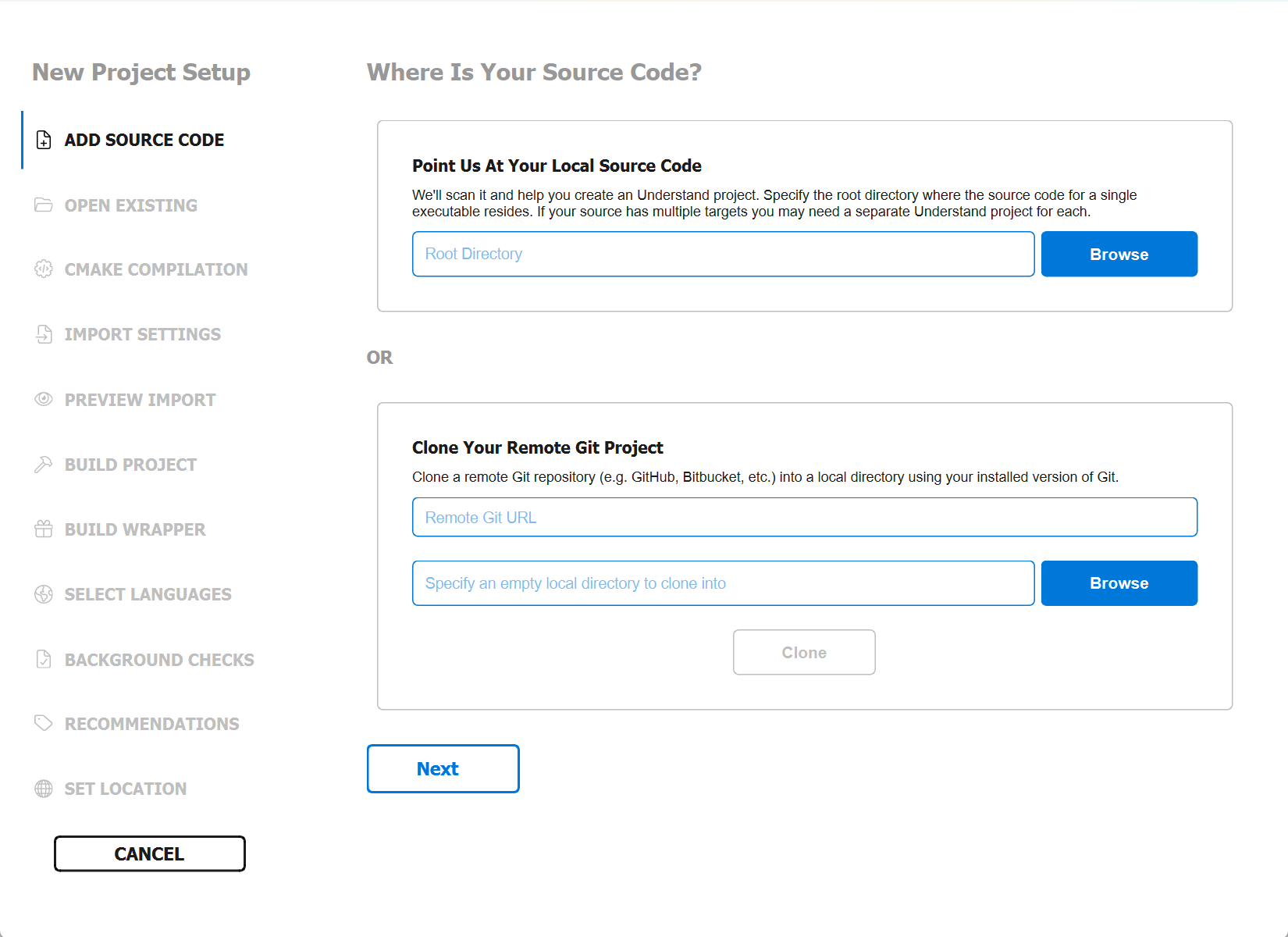
The wizard has a step for each decision (languages, compiler settings, file filters). For a guided walkthrough of every option, see Create your first project.
Accurate C/C++ takes one extra step
For C and C++, the biggest accuracy win is pointing Understand at how your code actually builds. See accurate C/C++ projects once you have the basics working.
2. Analyze
Analysis is where Understand parses your source and builds the database.
- The wizard offers to analyze when you finish it. Otherwise run Project ▸ Analyze All Files (Ctrl+Alt+R).
- Later, after editing code, use Project ▸ Analyze Changed Files (Ctrl+R) to re-parse only what changed — see Keep your analysis up to date.
Watch the analysis progress at the bottom of the window. Parse warnings here are normal on a first pass; if there are many, see fix parse errors.
3. Explore what you found
Now the interesting part — asking questions about your code.
Open the Information Browser (IB). The IB is your primary "tell me everything about this thing" panel. Click any entity (a function, class, variable, file) in the editor or a project view, and the IB shows its definition, type, metrics, and — most importantly — its relationships: what it calls, what calls it, what it uses, and what uses it.
- Use the IB to answer where is X used? and who depends on it? — follow the Called By and Used By entries.
- Full walkthrough: the Information Browser.
Open a graph. Right-click an entity and choose a graph (for example a call or dependency graph) to see relationships visually instead of as a list.
4. Find something specific
To jump straight to a named entity, use fast lookup instead of scrolling — see find things fast.
Where to next
- Take the 10-minute tour — a broader guided tour of the main views.
- Create your first project — every wizard option explained.
- The Information Browser — the panel you will use most.