Create an offline install kit for Windows
The Windows installer is a small download that fetches the components you select, so it needs
internet while it runs. For machines that have none — air-gapped networks, secure labs — build the
kit once on a connected machine and carry it over: the installer can save the finished
installation as a portable .zip containing exactly what you selected, including the local AI
model, which an offline machine could not download for itself.
1. Build the kit on a connected machine
- Run the installer and pick Advanced Install on the Installation Type page.
- Leave Build to install on the current release, or pick the release the offline machines should be on — the bundle contains whichever build you install here.
- Select the components and AI model the offline machines should get.
- On the Install Options page, choose Create offline bundle and Browse to the folder that should receive the zip.
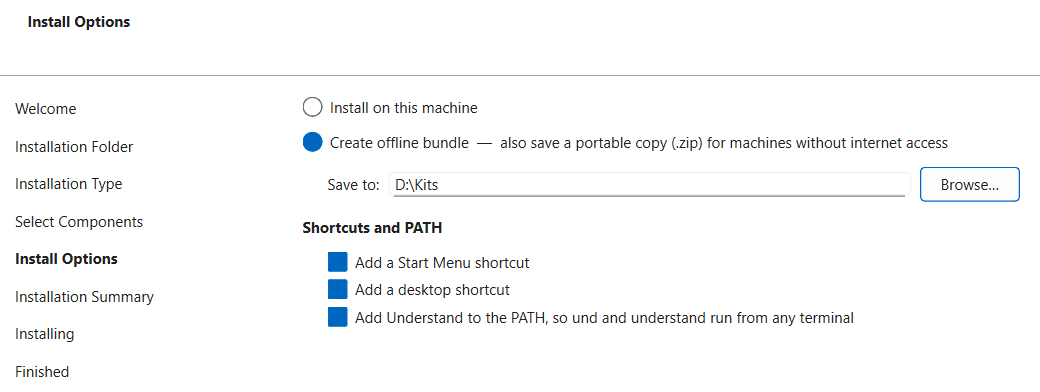
The installation proceeds normally on this machine, and afterwards the zip — named like
Understand-8.0.1262-Windows-64bit.zip — appears in the folder you chose.
2. Put it in place on the offline machine
Transfer the zip by your approved method (USB, internal artifact repo) and extract it anywhere,
for example into C:\Program Files. It contains one SciTools folder; the application is
SciTools\bin\pc-win64\understand.exe and the CLI tools are beside it.
Then license it without internet — offline checkout and
node-lock codes both work from the GUI or the und command line.
A portable copy, not a registered installation
The extracted copy runs as-is but isn't registered with Windows: there's no entry in
Apps ▸ Installed apps, no shortcuts or PATH entry (create your own if wanted), and no
maintenance tool. To update it, build a new zip from a newer build and replace the SciTools
folder. Your license and projects are untouched by that swap.