Return an offline or node-lock license
An offline or node-lock license belongs to one machine. Return it before you retire that machine, move the seat to another one, or go back to online licensing. The method depends on whether the machine can reach the license server right now.
| Your situation | Method |
|---|---|
| Offline license, machine can reach the license server | Enter Online Mode. Understand checks the seat in for you. |
| Offline license, machine cannot reach the server | Generate a return code and check it in at licensing.scitools.com. |
| Node-lock license, any connectivity | und -shownodelockreturncode, then check the code in at licensing.scitools.com. |
Returning removes the license from this machine
Once you return the license, Understand closes the open project and will not run on this machine until you license it again. Copy the return code before you close the dialog. It is your only proof that the seat was released.
Connected: Enter Online Mode
Use this when the machine can reach the license server. Understand checks the offline code back in with the server and removes it from the machine in one step. No return code changes hands.
In Understand:
- Open Help → Licensing.
- Click Options → Enter Online Mode.
- The dialog closes when the return succeeds. Understand goes back to your online license code.
If the server refuses the return or does not answer, Understand reports “Online License Authentication Return Failed”. Use the unconnected method instead.
From the command line:
und -enteronlinemode
The command prints Online License Authentication Return Successful or ... Failed. If the
machine has no offline code, it prints Offline License not checked out.
Which menu items you see
Enter Online Mode appears only when Understand can reach the license server and the machine holds a valid offline code. When the server is unreachable, the Options menu shows Return Offline Code and Extend Offline Code instead.
Unconnected: generate a return code
Use this when the machine cannot reach the license server. Understand removes the offline license and gives you a return code. You then check that code in at the licensing portal, from any device with internet, to free the seat.
In Understand:
- Open Help → Licensing.
- Click Options → Return Offline Code. The License Return Code dialog shows your current reply code and its expiration date.
- Click Generate. Understand asks “Create License Return Code?” and warns that it will be disabled on this device. Click Continue.
- Copy the value in License Return Code, then click Close. Understand closes the open project.
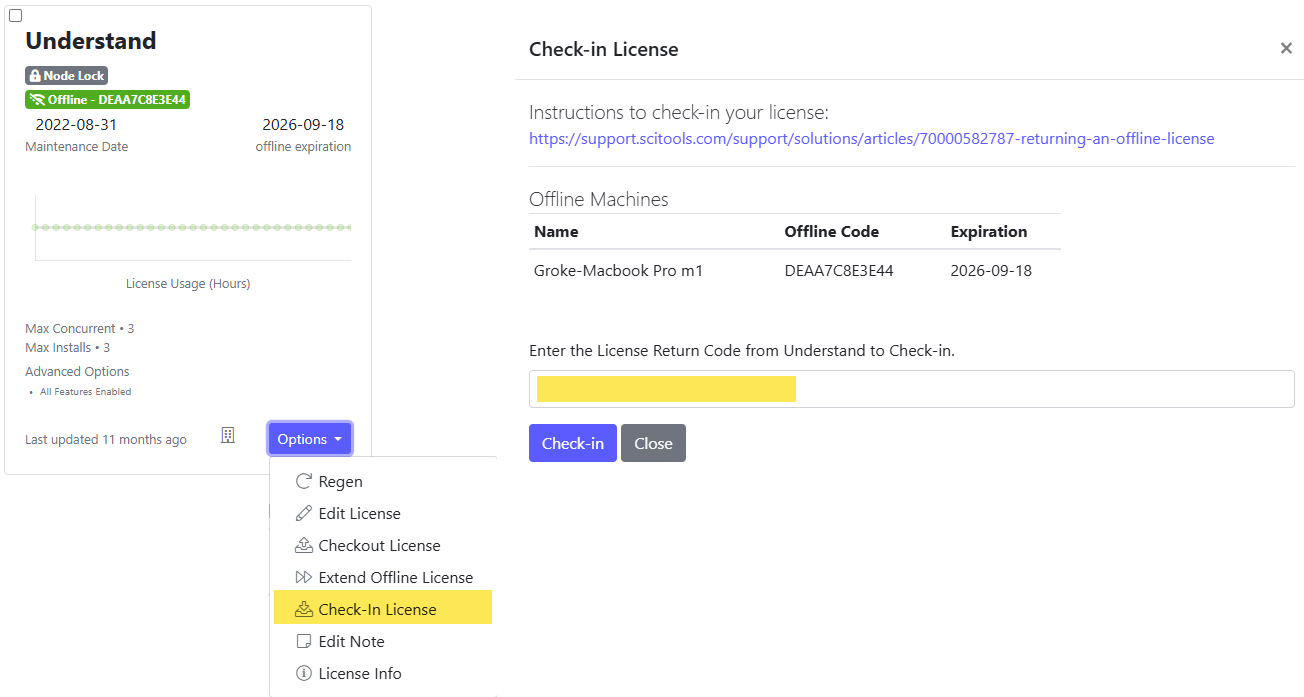
- At licensing.scitools.com, on any device with internet: sign in, find the card for your license, and click Options → Check-In License.
- The Check-in License dialog lists your Offline Machines with each machine's name, offline code, and expiration, so you can see which checkout you are returning. Paste the return code into Enter the License Return Code from Understand to Check-in and click Check-in.
The seat is now free for another machine.
From the command line:
und -showofflinereturncode
The command removes the offline license from this machine and prints the return code. Check that
code in at licensing.scitools.com as in steps 5 and 6 above. Run the command again to reprint
the code; the second run changes nothing, and prints No Return Code Available if the machine
never held an offline license.
The next time you request an offline code on this machine, the request dialog shows the last return code under Previous Return Code.
Return a node-lock license
The node-lock return starts on the command line and finishes in the portal, like an offline return. The Help → Licensing → Options menu covers offline codes only.
und -shownodelockreturncode
This command generates a return code that starts with NL,
removes the node-lock license from the machine, and prints the code. Check that code in at
licensing.scitools.com with Options → Check-In License, the same dialog as in
steps 5 and 6 above. It takes node-lock and offline return
codes alike. Run the command again later to reprint the stored code; it prints
No Return Code Available if the machine never held a node-lock license.
License the machine again
- Online license: open Help → Licensing and enter your license code, or run
und -setlicensecode <CODE>. See Activate Understand — redeem a claim code & enter your license. - A new offline code: follow Check out an offline license.
- Check the result: run
und license. It reports the current license without checking out a seat.
Floating (online) seats need none of this. They free themselves when Understand closes; see Manage a team — seats and usage.