Compare two versions of a project
To see what changed across a whole project — which entities were added, removed, or modified, and by how
much — point Understand at a comparison database: a second .und holding an earlier version of the
same code. That database can be an existing analysis you kept, or one Understand creates for you from a
specific Git commit. Understand then diffs the two and reports the changes.
Set the comparison database
Open Compare → Comparison Projects to manage comparison databases in one panel. The table lists each comparison database with its Project name and analysis Status. Its toolbar:
| Action | What it does |
|---|---|
| Open Project | Use an existing .und as the comparison database. |
| New Git Project | Create a comparison database from a Git commit (see below). |
| Analyze | (Re-)analyze the selected comparison database. |
| Close / Remove | Close it, or remove it from the list (the file is not deleted). |
| Locate Changed Entities | Open the Changed Entities Locator (see below). |
A project cannot be compared with itself, so opening the current project as its own comparison is rejected.
Create a comparison database from a Git commit
Choose New Git Project to open the New Project from Git dialog. Fill in:
- Git Repository — the repository directory.
- Git Commit — the commit hash (use the … button to browse commits).
- Database Name — where to save the new
.und(defaults next to your project, suffixed with the commit). - Configure settings after creation — optionally open the project configuration afterwards.
Click Create Project. Understand builds a read-only database whose file contents are read from that commit, then adds it as a comparison database. (Note: only file contents come from the commit — the set of files to analyze is not auto-derived from the commit, so start from a project configured for the same code.)
What the comparison reports
Changed Entities Locator
Compare → Locate Changed Entities (or the panel's Locate Changed Entities button) opens a filterable list of the entities that differ between the two versions. Only entities with a source body are compared — files, functions, classes, methods, and the like; line-less entities such as objects and variables, and multi-file entities such as namespaces, are never compared and so never appear as added, removed, or changed. Each row carries a Status and line-churn columns:
| Status | Meaning |
|---|---|
| Added | Present now, absent in the comparison version. |
| Removed | Present in the comparison version, gone now. |
| Changed | Present in both, but the source text differs. |
The churn columns show, per entity:
| Column | Metric | Meaning |
|---|---|---|
| New Lines | CountLineNew |
Lines added. |
| Removed Lines | CountLineRemoved |
Lines removed. |
| Changed Lines | CountLineChanged |
Lines changed. |
| Percent Changed | PercentChanged |
(Added + Removed + 2×Changed) / (current + previous lines). |
Any ordinary metric can also be shown as a delta using a Diff-prefixed name — DiffCountLine,
DiffCyclomatic, DiffCountPath, etc. — computed as current − comparison and signed (negative means
it shrank).
Added and removed entities are colour-coded in the list; you can change those colours on the Colors settings page.
Visualize and drill in
- Compare → Changes Treemap paints one box per changed entity, sized and coloured by how much it changed — see Where did the churn happen? the Changes Treemap.
- Selecting a changed entity opens the side-by-side diff of its old and new source.
- Graphs offer Compare variants that draw both versions at once, with added/removed/modified entities and references color-coded — most default graphs have one; see the graph catalog.
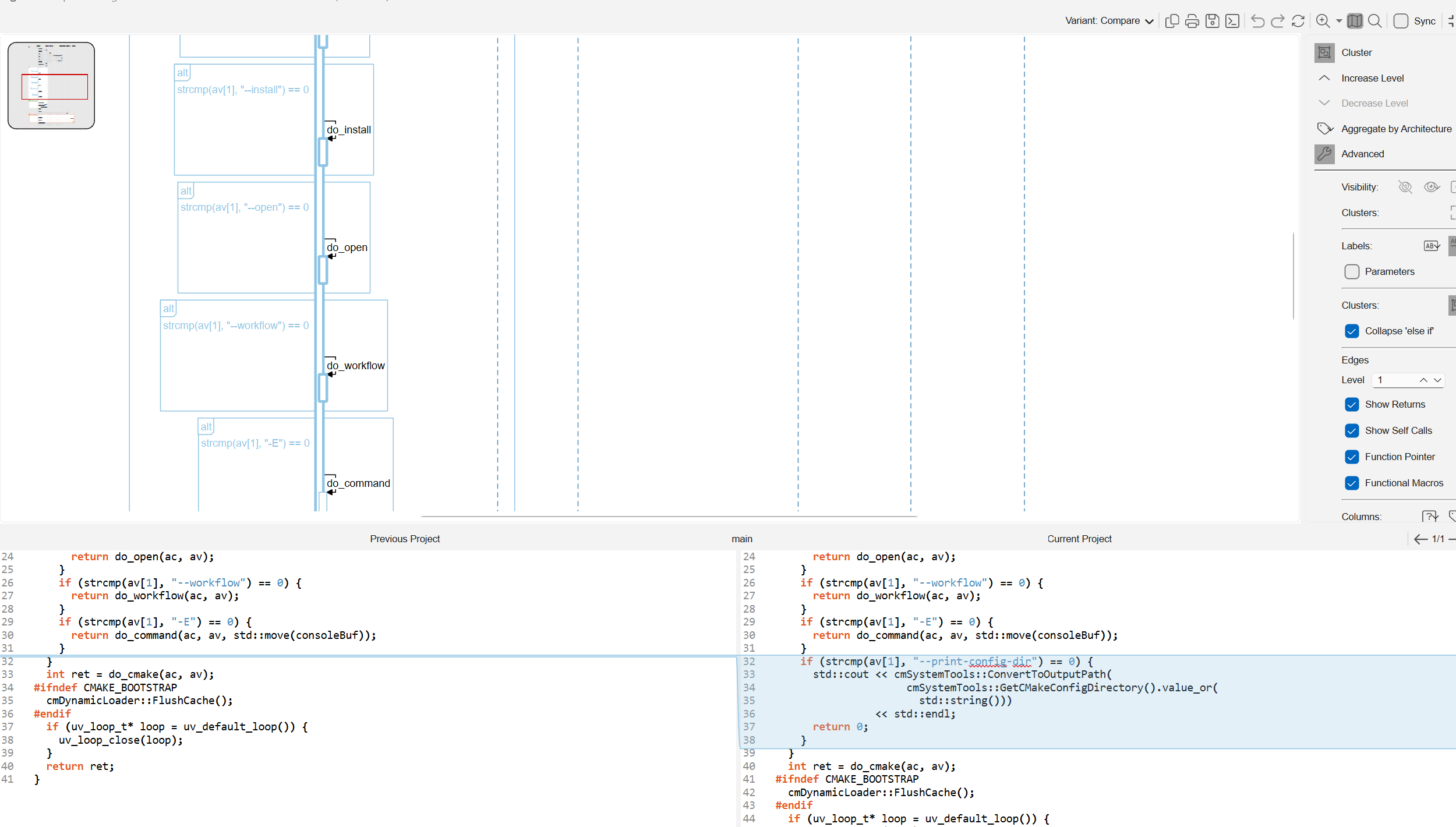
--print-config-dir block is highlighted.From the command line
Set the comparison database (or Git repository) headlessly with
und settings:
und settings -comparisonprojectpath baseline.und myProject.und
und settings -gitrepositorydirectory /path/to/repo myProject.und
Create a commit-pinned database directly with und create:
# File contents are read from <githash>; without -refdb no files are added for you.
und -db baseline.und create -gitcommit <githash> -gitrepo /path/to/repo -languages C++
-refdb <project.und> copies an existing project — settings and its file set, which is then
rescanned against the pinned commit — and registers the new database as that project's comparison
database. It's usually what you want for a baseline, since the two projects then cover the same files.
Export the changed entities to CSV with und export -changes (columns include Status, the churn
metrics, and any metric name). That command — including its -cmpdb, -kinds, and -columns flags,
the default column set, and the PercentChanged formula — is documented in
Export & track metrics over time.
Baselining CodeCheck violations is separate
To ratchet violations (flag only new ones against a previous inspection) rather than compare code, see Baseline existing violations.