Update or uninstall Understand
Check for updates
Understand can tell you whether a newer build is available:
- Open Help ▸ Check for Updates.
- Understand compares your build against the latest published build:
- If you are current, it reports "You are on the latest version"
- If a newer build exists, it opens the download page in your browser so you can get it.
- If it can't reach scitools.com, it reports that instead (check your connection or download manually from the link below).
The latest build is always available at licensing.scitools.com/download.
To see your current build number, open Help ▸ About Understand.
Install an update
Download the newer build from licensing.scitools.com/download, then:
-
Windows — run the installer. When it finds your existing installation it offers to update it in place, downloading only the components that changed — your component and AI model choices are kept. (Answering No instead does a fresh installation, which deletes everything in the folder first — the installer warns before touching anything.) Any Windows installer you already have works here: it looks up the current release when it runs, so it installs the same build a freshly downloaded one would.
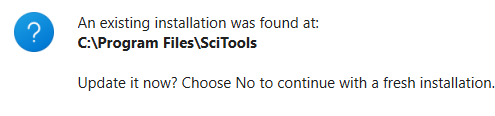
Yes hands off to the installation's own maintenance tool and fetches just the changes. You can also update without downloading an installer at all: run UnderstandMaintenanceTool.exe from the installation folder and choose Update components. The same tool's Add or remove components changes what's installed — the AI model included — without reinstalling.
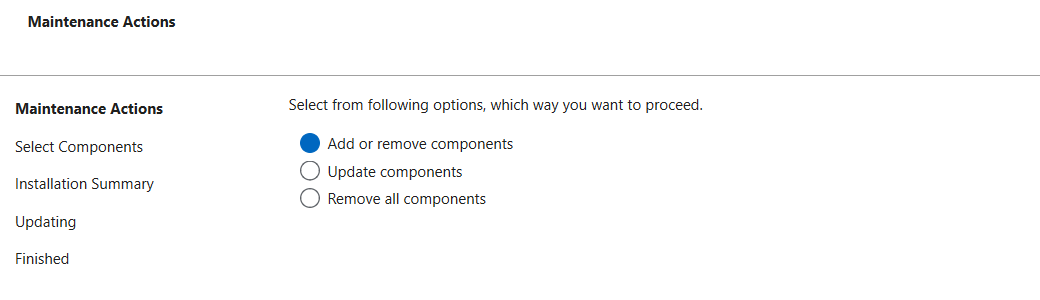
UnderstandMaintenanceTool.exe — update, change components, or uninstall from one place. -
macOS — mount the new
.dmgand drag Understand onto Applications, replacing the old copy. - Linux — extract the new
.tgzand use it in place of the oldscitools/folder (or alongside it, if you want to keep both builds available).
Full per-platform steps are in Install Understand. Your license and projects are not affected by updating; if an update changes a parser, affected projects are re-analyzed automatically — see Keep your analysis up to date.
Keep your license
Your license is stored separately from the application, so a normal update keeps you licensed. If a fresh install ever asks for a license again, see redeem a license.
Uninstall
Uninstall from Settings ▸ Apps ▸ Installed apps (or Add or Remove Programs): find
Understand and choose Uninstall. This opens the maintenance tool at Remove all
components, which removes the program files along with the shortcuts and PATH entry the
installer created. Close Understand first — the uninstaller checks for running Understand
programs and won't remove anything while they're open.
Quit Understand, then drag Understand from Applications to the Trash. That removes the application bundle (which includes the bundled command-line tools).
Understand ships as a tarball with no installer, so there is nothing to run — just delete the
extracted scitools/ folder. Also remove any PATH entry you added for
scitools/bin/linux64.
Remove leftover settings (optional)
Uninstalling removes the program, not your per-user preferences. For a truly clean reinstall — for example when troubleshooting — also clear Understand's settings. See reset settings.
Your .und project databases are your own files wherever you created them; uninstalling does
not touch them. Delete them yourself if you no longer need them.