Choose what to install on Windows
The Default Install gives most people the right thing: the current release of the Understand
application, the command-line tools, documentation, the CMake example project, a local AI model, Start Menu
and desktop shortcuts, and a PATH entry. Pick Advanced Install on the Installation Type page
when you want to change any of that — it opens a build list on that page and adds the two pages
below to the install flow.
Build to install
Advanced Install shows a Build to install list on the Installation Type page, holding the releases available to download. It starts on the current one, marked Latest Release, which is what a Default Install uses.
Pick an earlier release to install that instead — useful for matching the version a colleague or a build server is on. Setup restarts to load the build you picked, keeps you in Advanced Install, and carries on from there; everything after that point behaves the same, including the component and option pages below.
The list appears once more than one release is available to choose between. The Japanese installer lists only the releases verified for Japan.
Select components
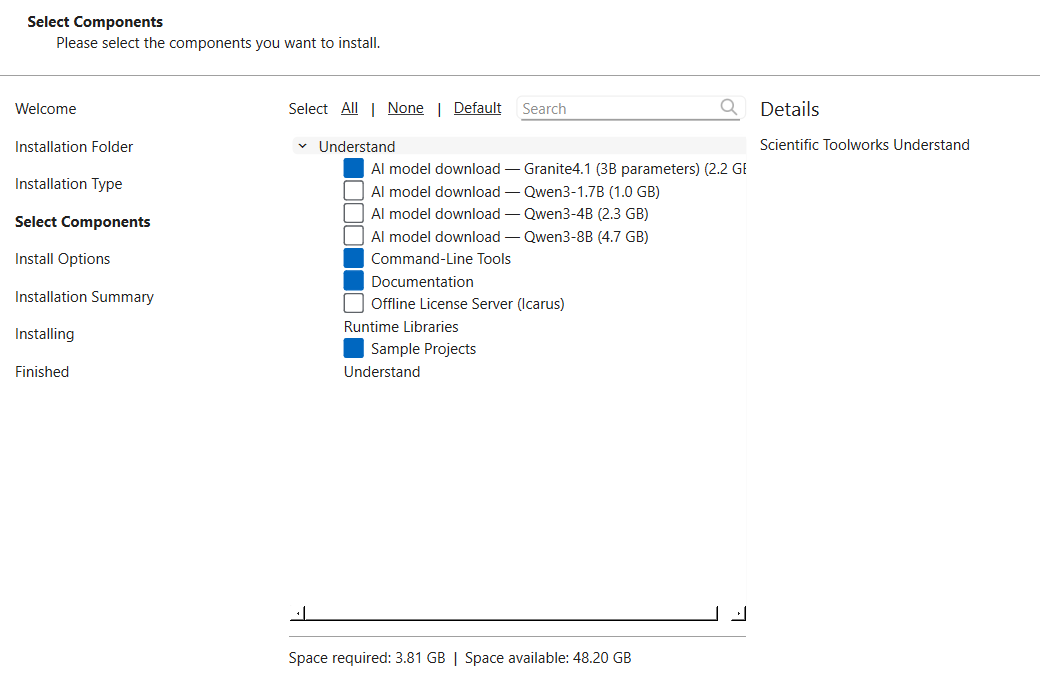
- AI model download — the local model behind Understand's AI features. Understand uses one model, so checking a different one unchecks the current pick. The model is downloaded during installation (sizes are in each label), or uncheck them all to install without one — everything else works, and you can pick a model later.
- Command-Line Tools —
undanduperlfor scripted analysis (command reference). - Documentation — this documentation, installed locally so Help works offline.
- CMake Example Project — an example codebase for exploring Understand. Only this one is installed; the other example projects download when you open them from Open Example Project.
- Offline License Server (Icarus) — off by default; only needed if this machine will serve floating licenses without internet.
- Understand and Runtime Libraries are the application itself and always install.
Install options
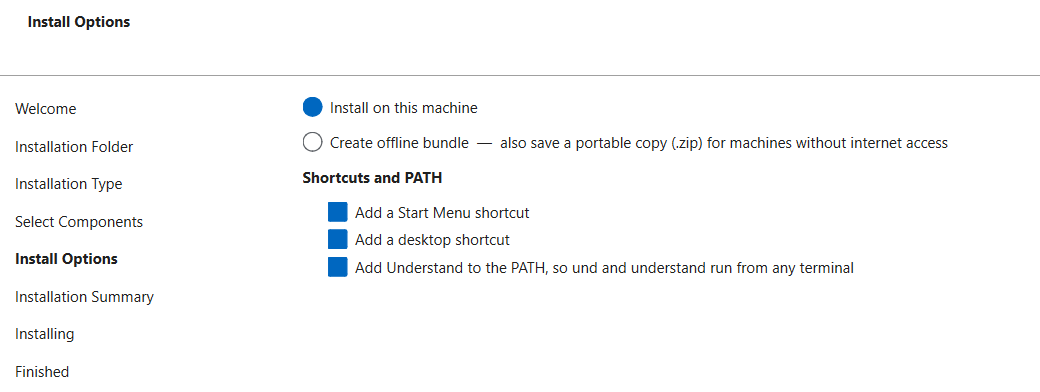
The Start Menu shortcut, desktop shortcut, and PATH entry can each be turned off.
The PATH entry is added for your user account only (no other accounts are changed) and makes
und and understand runnable from any terminal you open afterwards. Uninstalling removes all
three along with the program.
Create offline bundle also saves your installation as a portable .zip for machines without
internet access — see Create an offline install kit for Windows.
Changing your mind later
You don't have to reinstall to add or remove components — run UnderstandMaintenanceTool.exe from the installation folder and choose Add or remove components. See Update or uninstall Understand.